
Navigating Captured Media
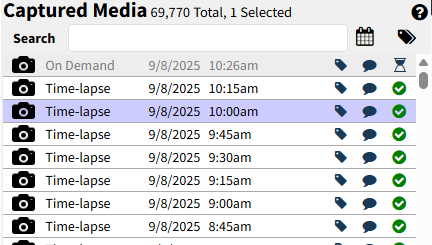
Image Types
Depending on your camera model, the below image types may appear on the “Captured Media” list displayed on the VIEW and ARCHIVE pages
On Demand
Time-lapse
Panorama
Triggered (video)
DVR (video)
Image Status Icons
The status of your image will display in the last column of “Captured Images“
- Hourglass: Image has been queued for upload
- Percentage: Image is uploading and percent complete will display
- Lightning Bolt: Image has uploaded and is now rendering
- Green Check Mark: Image has processed successfully
Additional Notes:
- Processing times can vary depending on the amount of data uploaded
- With faster network speeds, users may not see all image status icons
- Users may mouse over the image status icons at any time to see the status
Image Naming, Tagging, Captioning, and Search Capabilities
Whether you want to tag a series of pictures for project milestones or detail an incident at a site, SiteCloud users have the ability to do so within “Captured Images“.
Image Naming: Name individual pictures you’ve taken as a way to record unique events or incidents while on the job site (16 character limit)
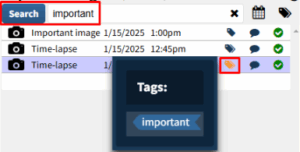
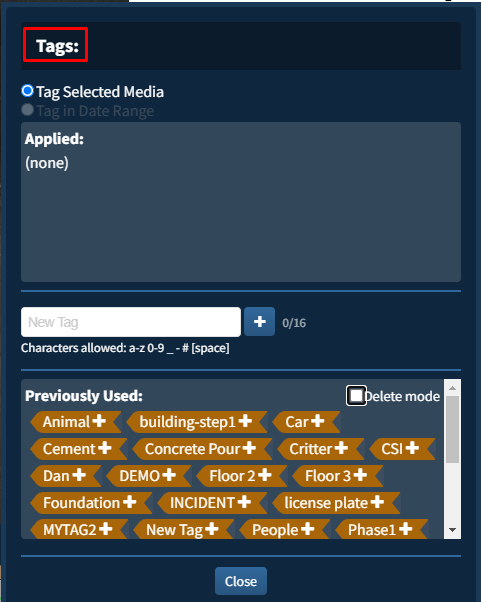
Image Tagging: Tag individual pictures if you’d like to group a series of images that document phases of a project or particular content (16 character limit)

- Additional Notes on Tags:
- A tagged image will be denoted by a “double” tag icon on the list
- Created tags will be available across all cameras within a SiteCloud user account
- View the “Applied” tag(s) for an image by clicking on the “Tag” icon
- View “Previously Used” tags for any image by clicking on the “Tag” icon for the picture
- Remove “Applied” tag(s) by clicking on the “Tag” icon and selecting the “X”
- Images may have multiple tags associated to it
Image Captions: Caption an image if you require additional details on a picture

- Additional Notes on Captions:
- A captioned image will be denoted by a “double” caption icon on the list
- Captions will be available for search across all cameras within a SiteCloud user account
- View the “Caption” for an image by clicking on the “Caption” icon
- Remove captions by deleting the text within the “Notes” section and clicking “Save“
Image Search: Search for an image via date, name, tag, or caption using the search bar above “Captured Images“. Images that match the entered criteria will display within the pane